
Schematic & Gerber restoration
Firmware recovery & chip unlocking
PCB recreation from physical samples
BLE & Classic BT wireless solutions
Precision PID & thermal management
High-efficiency motor drive control
Industrial RS485/RTU communication
Custom STM32/ESP32 firmware & HW
Calculate the PCB trace width based on temperature rise, current, and copper thickness (IPC-2152).

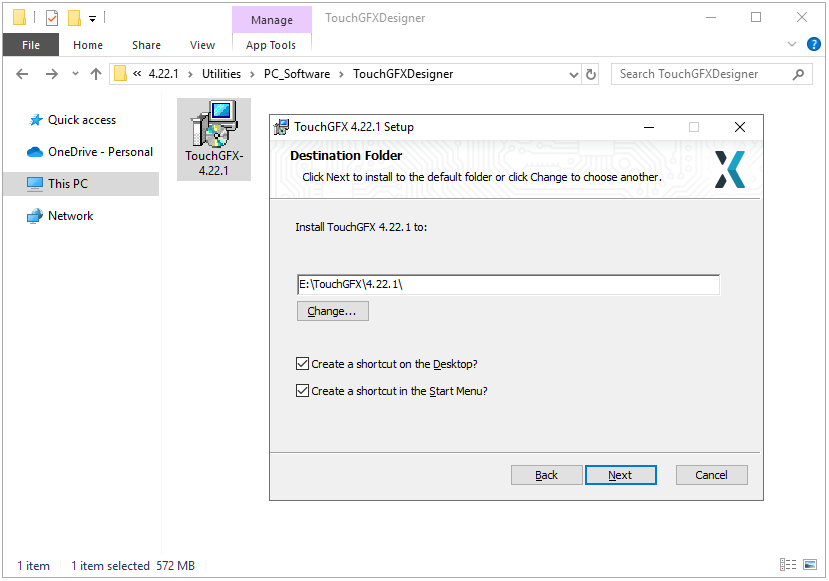
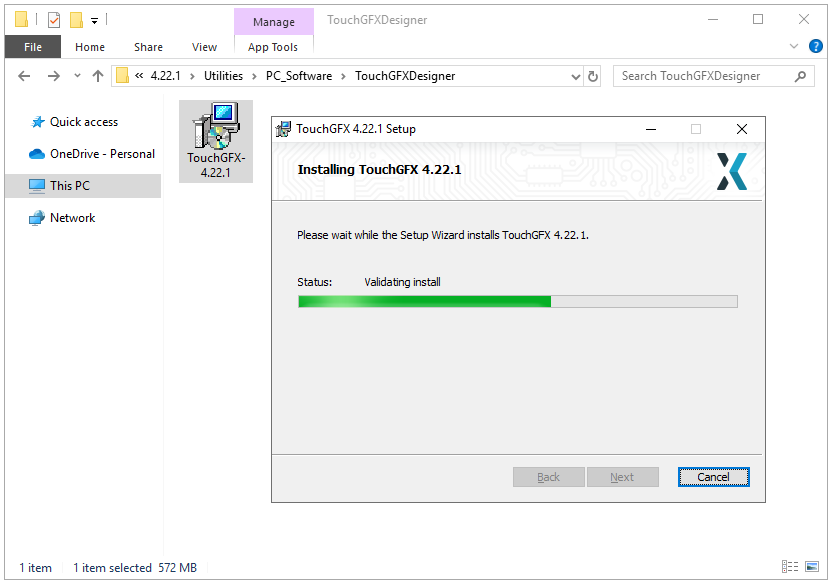
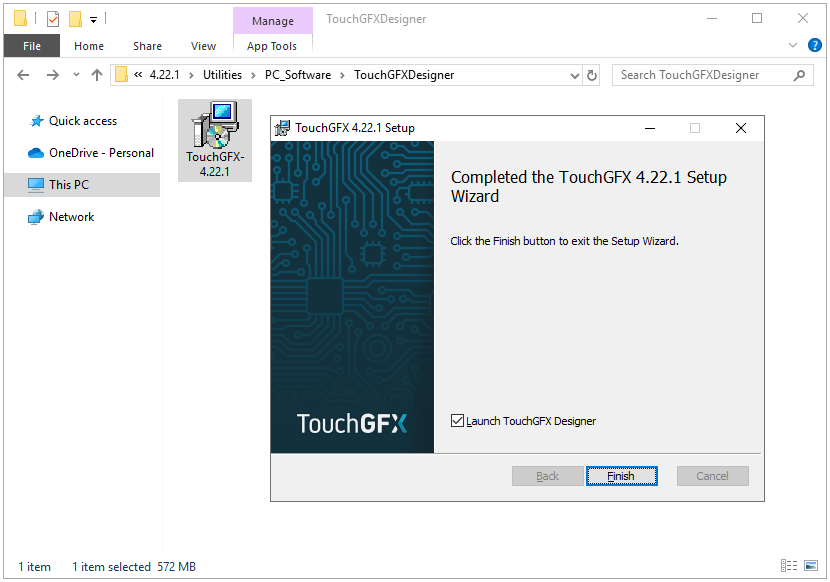
TouchGFX is similar to STemWin. It is a GUI framework that can easily create GUI applications on STM32 Cortex-M4 and higher-level STM32 chips. This article aims to introduce the installation process of the TouchGFX software package. Before doing this, you need to pre-install the STM32CubeMX.
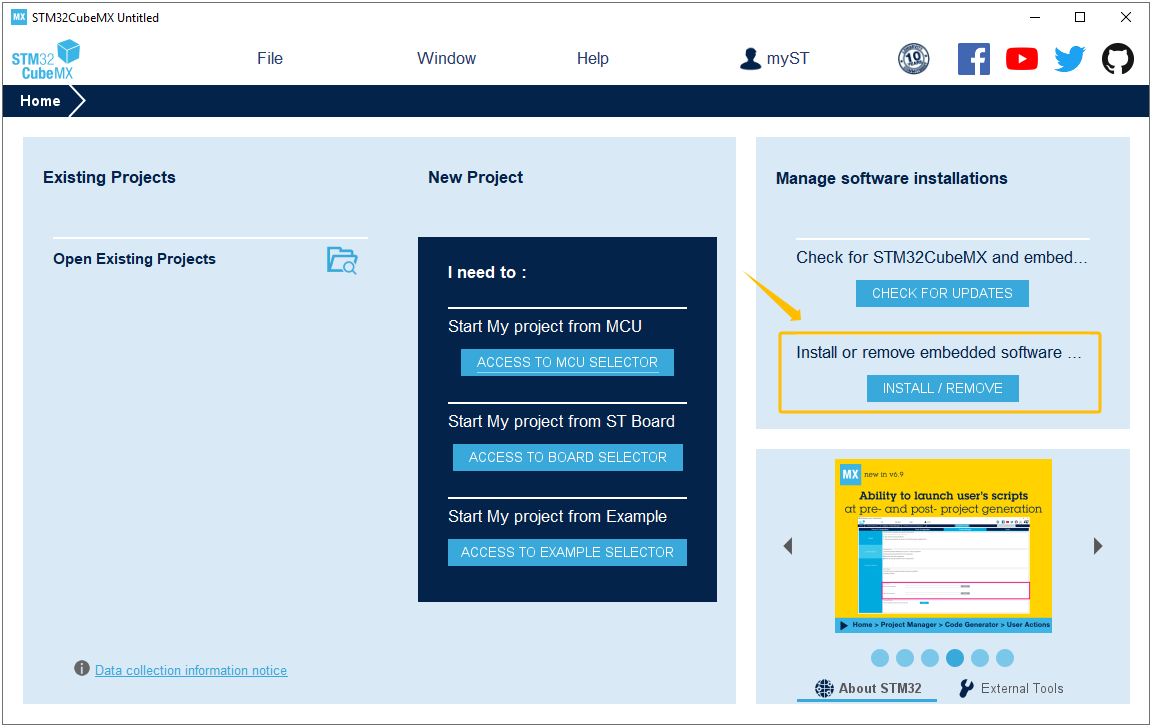
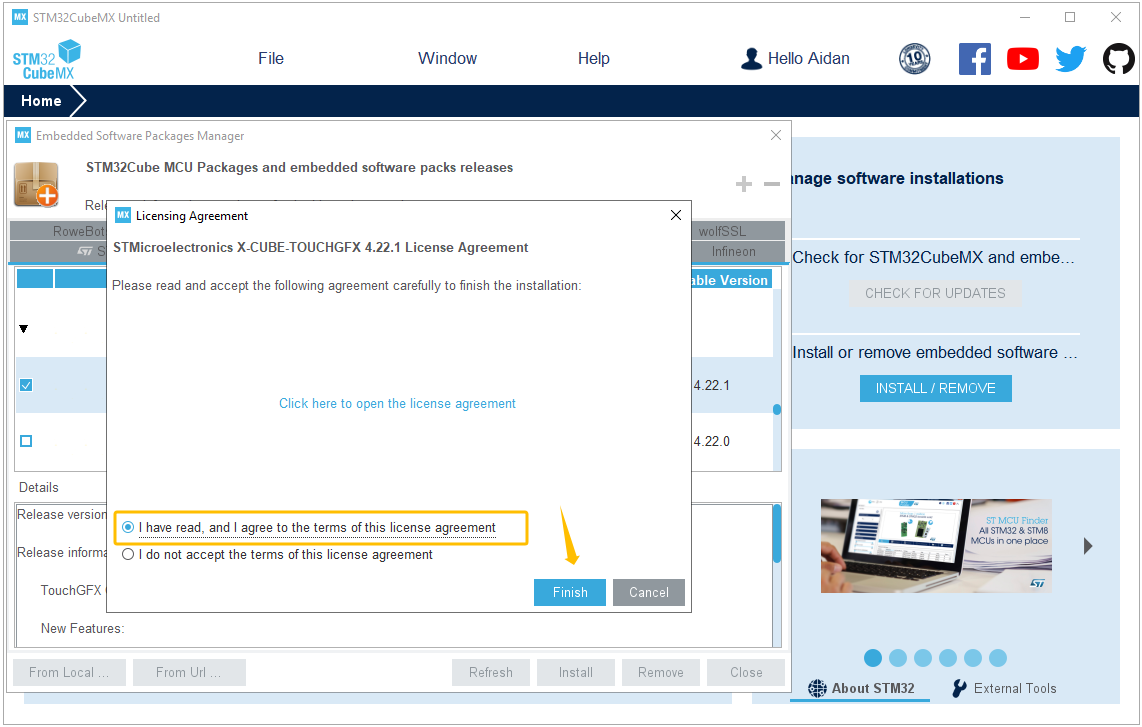
Open the STM32CubeMX software and click “Install or remove embedded software packages”.
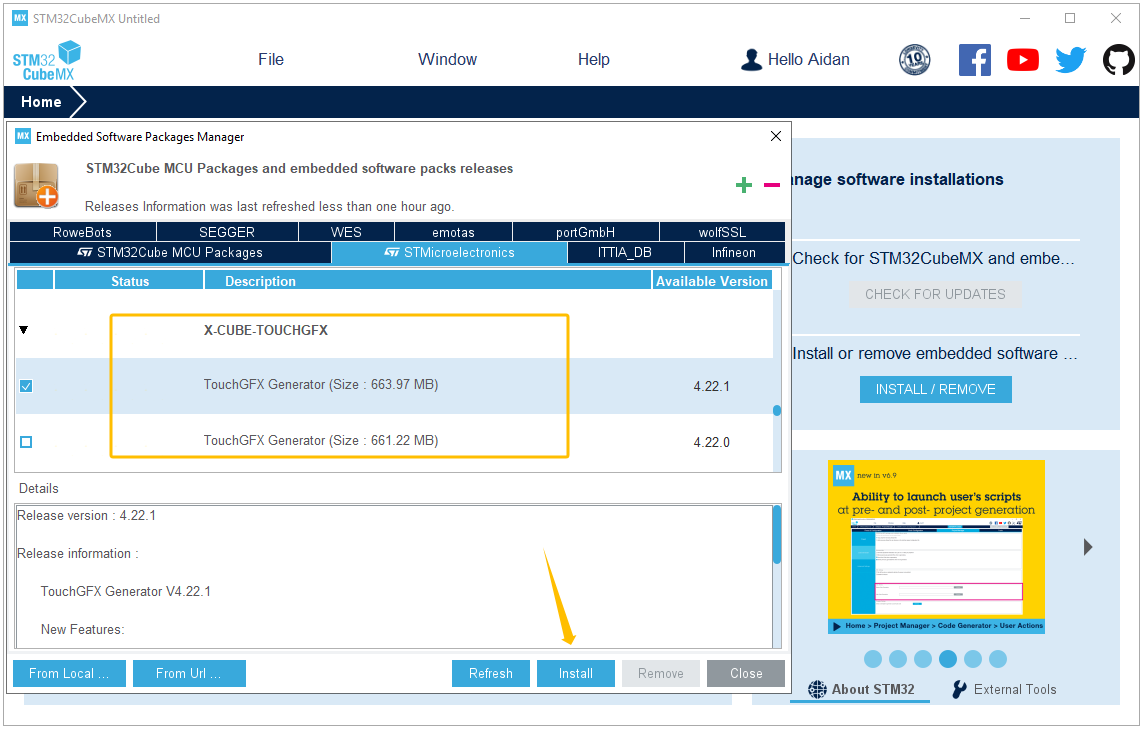
Find the TouchGFX Generator software package and click to install (you must log in to your STM32CubeMX account before installation).
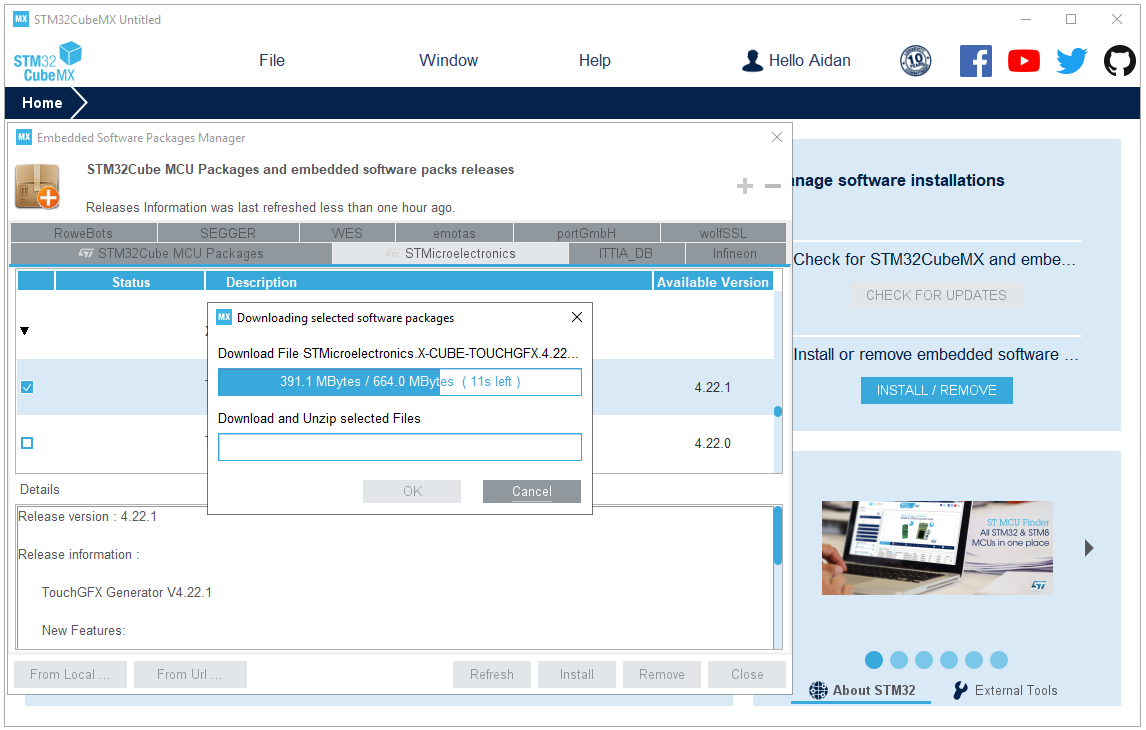
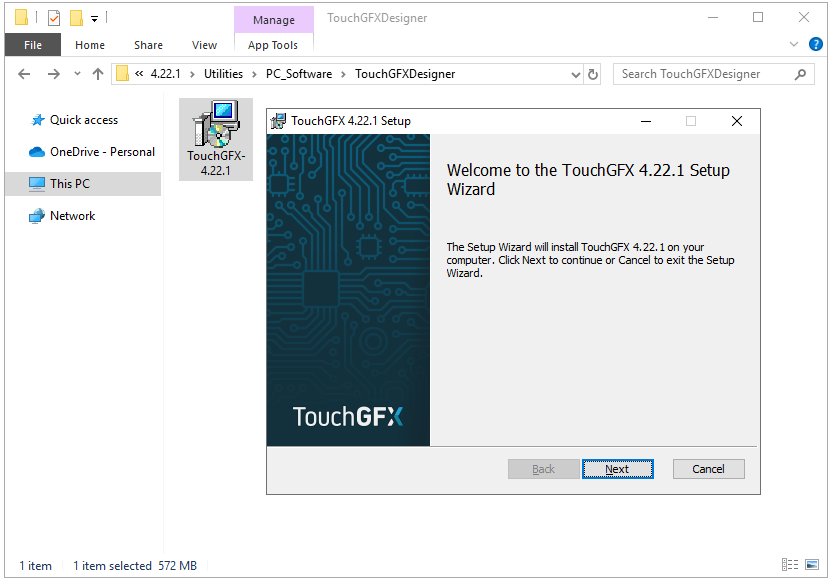
Download and Unzip TouchGFX package.
Agree to the terms of License Agreement.
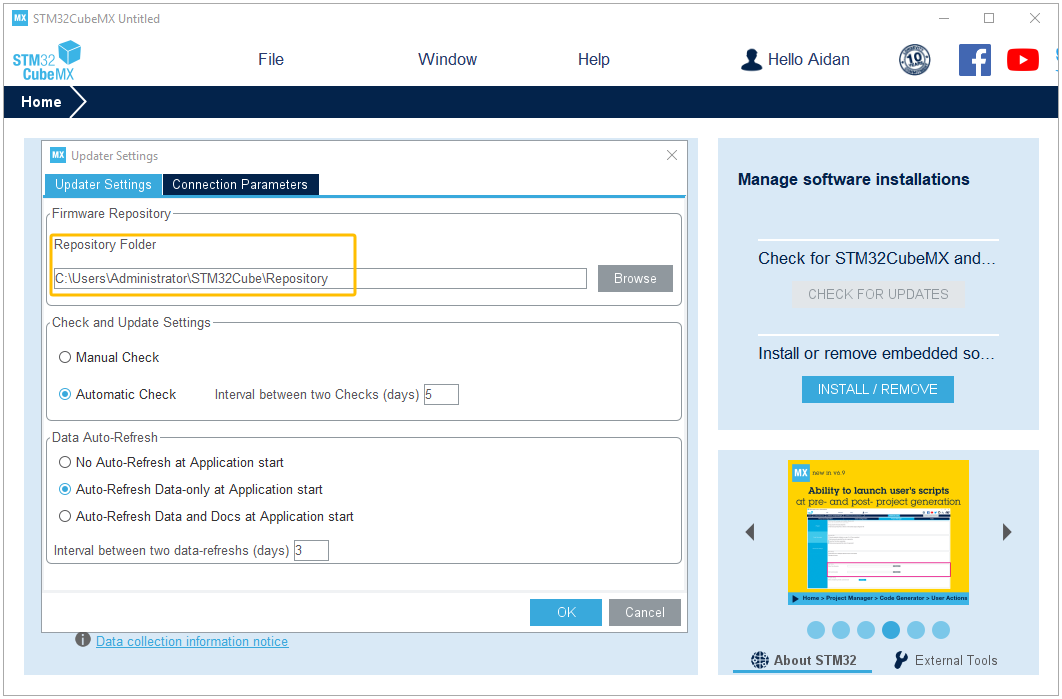
Click the “Help<<Updater Settings” on STM32CubeMX menu, and then find the TouchGFX software package according to the following path:
C:\Users\Administrator\STM32Cube\Repository
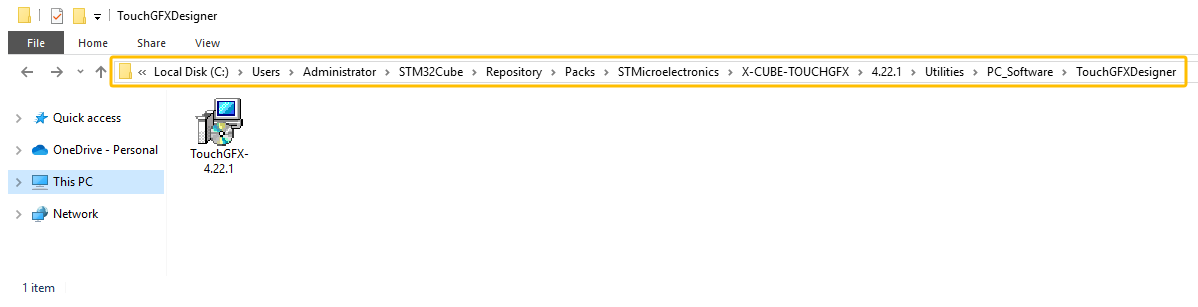
The final TouchGFX package path is as follows:
C:\Users\Administrator\STM32Cube\Repository\Packs\STMicroelectronics\X-CUBE-TOUCHGFX\4.22.1\Utilities\PC_Software\TouchGFXDesigner
Related Post:
Before installing TouchGFX Designer, check the STM32CubeIDE, STM32CubeMX, firmware package, and target board versions used by your project. Version mismatch can cause missing board templates, build errors, or generated-code conflicts after importing the GUI project.
After installing TouchGFX Designer, create a test project before connecting it to real display hardware. Start with a supported STM32 discovery or evaluation board if possible, then confirm simulator preview, screen transitions, assets, fonts, and generated code before adapting the project to a custom PCB.
A practical first project should include one screen, one button, and one simple interaction. Use the simulator to confirm the UI flow, then generate code and open the project in STM32CubeIDE. For custom display boards, check Flash size, RAM size, frame buffer location, display interface, and external memory configuration.
If TouchGFX Designer does not start, cannot find board templates, or fails during code generation, check installation path permissions, STM32CubeMX integration, firmware package installation, and whether the selected board is supported by the current TouchGFX version.

I am Aidan Taylor and I have over 10 years of experience in the field of PCB Reverse Engineering, PCB design and IC Unlock.